

Opera and its gaming version Opera GX are built on Chromium and support Chrome Web Store extensions. Here is how to install GRIND for FACEIT and what to check if the install button or stats are missing. This guide is for desktop browsers.
GRIND · THE MOST CUSTOMIZABLE EXTENSION FOR FACEIT IN CS2
ENTER YOUR FACEIT NICKNAME.
DISCOVER YOUR ROLE.
Enter a nickname — see your role, five skill rings and form over 30 matches.
Example result: donk666



ROLES AND SKILL RINGS IN THE FACEIT MATCH ROOM
Want to see other players' roles right in the match room?
Does GRIND work in Opera and Opera GX?
GRIND is a Chromium browser extension. You can install it from the Chrome Web Store in desktop Opera or Opera GX. Then open a FACEIT matchroom: the extension adds stats to FACEIT pages, rather than the CS2 game window. Check other extensions against their current listings and requirements.
Where to install it from
Opera has its own Opera Add-ons catalog and supports the Chrome Web Store. The official GRIND listing is in the Chrome Web Store. Follow the prompts in your current browser version; the extra “Install Chrome Extensions” add-on is not a required step in Opera’s current help.
Current Opera installation guide
How to install a FACEIT extension in Opera
- Open the official GRIND listingLaunch desktop Opera or Opera GX and use the install button on this page to open the Chrome Web Store.
- Click the add buttonOpera’s help calls it “Add to Opera”; the label may vary with your language and browser version. Follow the prompts shown.
- Check the requested permissionsRead the browser dialog and confirm installation if you agree to the access requested. Do not download a separate CRX from a third-party site.
- Refresh FACEITOpen a matchroom and wait for player data. If FACEIT was open before installation, refresh the tab.
Which FACEIT extensions are worth installing
For most players, a single GRIND is enough — it is free and covers what people usually install Repeek for, plus a pre-veto lobby breakdown:
- What Repeek does — auto ready-up, invite accept, recent-match stats, FACEIT Rating and Swing.
- What Repeek does not — win chance on every map before the map pick/ban, a 0–100 smurf/booster score per opponent, player roles, a face-to-face compare and auto-position.
So there is no reason to keep Repeek next to GRIND: the basics are the same, and the pre-match read only exists in GRIND. Want the full field, including Mappio, Faceit EGO and more? See our comparison of the best FACEIT extensions.
Everything GRIND does, in one list:
- Win chance by map — a radar across the whole pool plus Win chance · Winrate · Picks tabs for every map — see where your team is ahead and what the enemy plays most. Pick your map.
- Team stats — form, average ELO, Firepower, AVG Kills and K/D of both teams — in the centre of the room, above the map panel.
- Hidden Pool Check — an instant verdict: which side the lobby favours by team strength over the last 10 matches, who is in a slump and where a likely smurf sits. Reasons on click.
- 7 roles and 5 skill rings — CARRY, ENTRY, ANCHOR, AWPER, CLUTCHER, SUPPORT or UNIVERSAL for every player in the lobby, plus Firepower, Opening, Sniping, Clutching and Utility rings — see who does what.
- FACEIT Rating and Swing — each player's average rating and real round impact over the last 30 matches.
- Last 30 matches — Wins, AVG, K/D and ADR for every player in the lobby.
- Your numbers in the strip — pick 4–5 numbers under every player: Wins, AVG, K/D, ADR, K/R or HS%.
- Career and maps — how many matches a player has played, their best and worst map and all-time stats on every map.
- Form and streaks — a form battery — the last 10 matches against their usual game — and win or loss streaks from two in a row.
- Smurf and Boosted score 0–100 — suspicious and boosted accounts show up before round one.
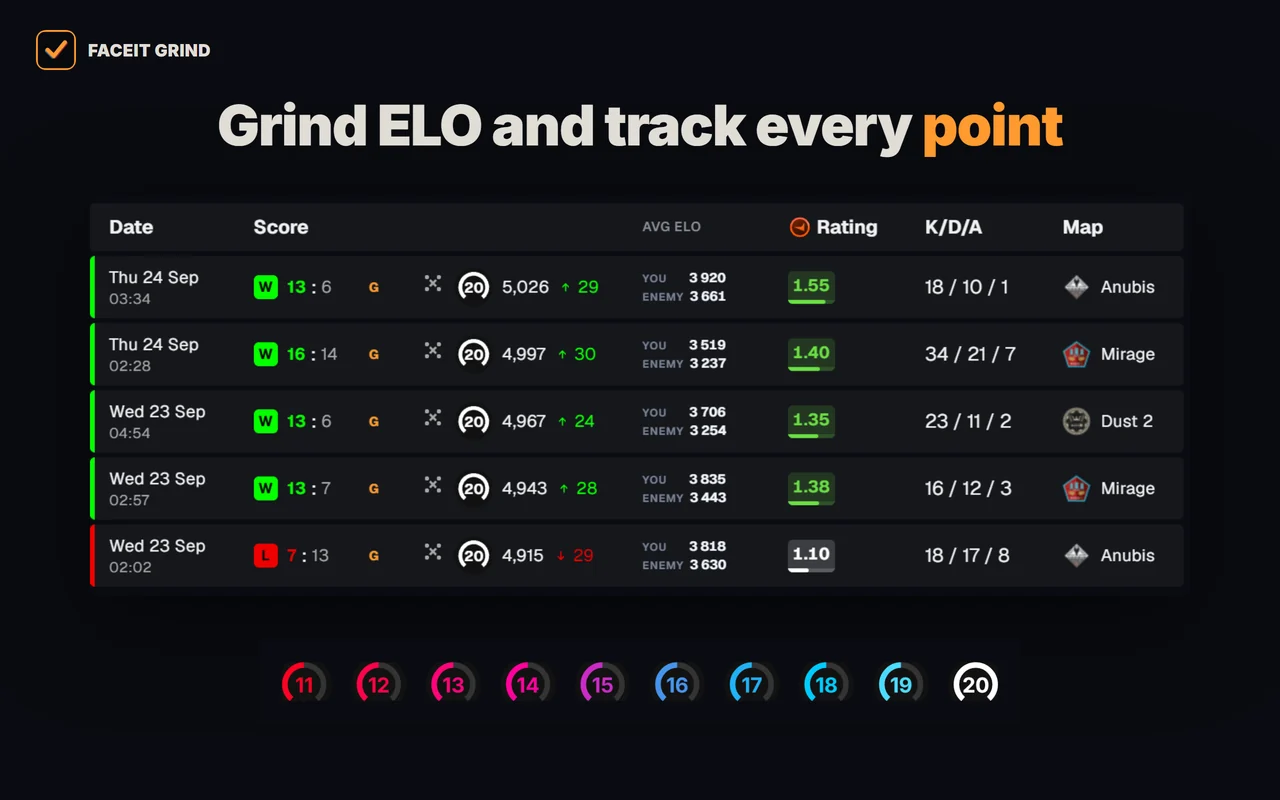
- Levels 11–20 — tell level 10s apart above 2,250 ELO — with GRIND metals or levels 11–20.
- Country flag by the nickname — see where each player is from right in the room roster.
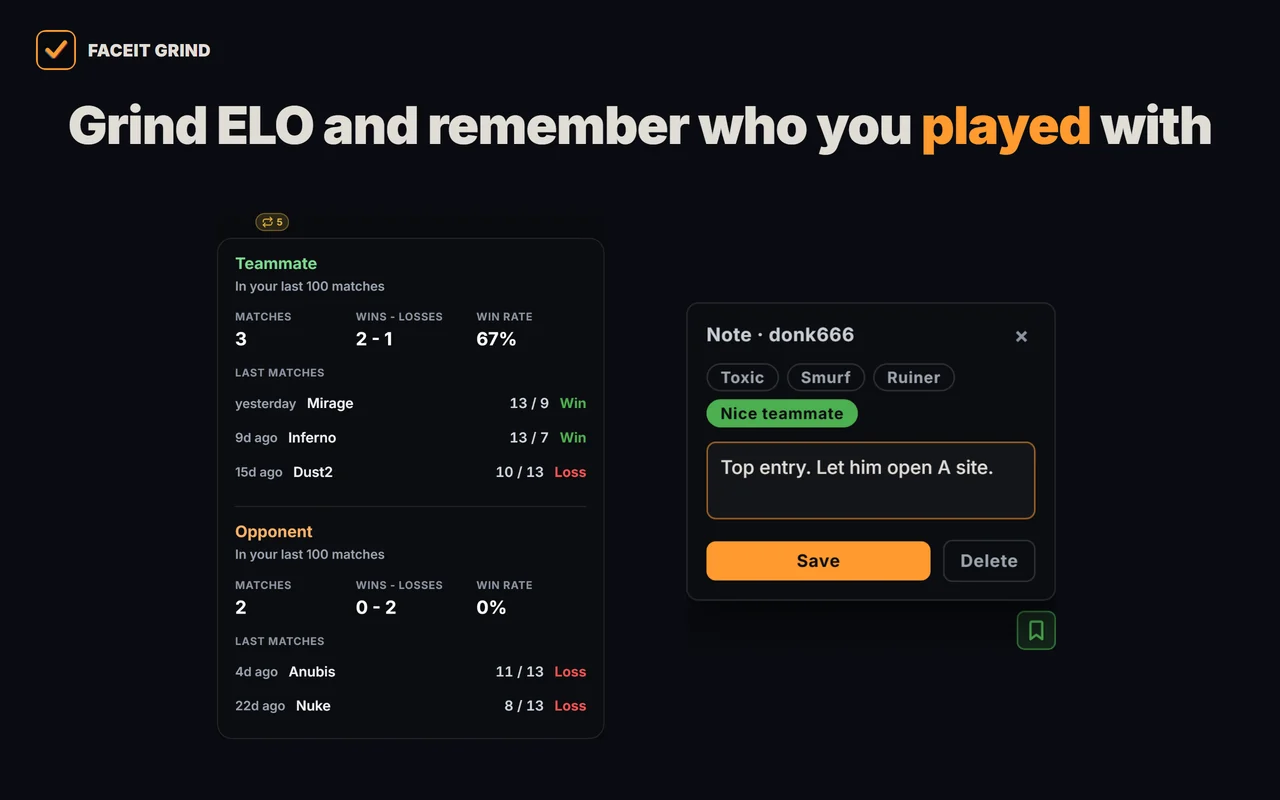
- Played together — who you have already met in your last 100 matches — as a teammate or an opponent — and the score.
- 1v1 Duel — compare two lobby players head to head: OVR, ELO, K/D, ADR, HS%, win rate, compare by any map and a quick Top vs Top pair.
- Player notes — tag a griefer or a great teammate — the note pops up next time you meet and stays on your device only.
- Invite friends — a button in the map panel copies the GRIND link with a ready message — send it to your teammates in one click.
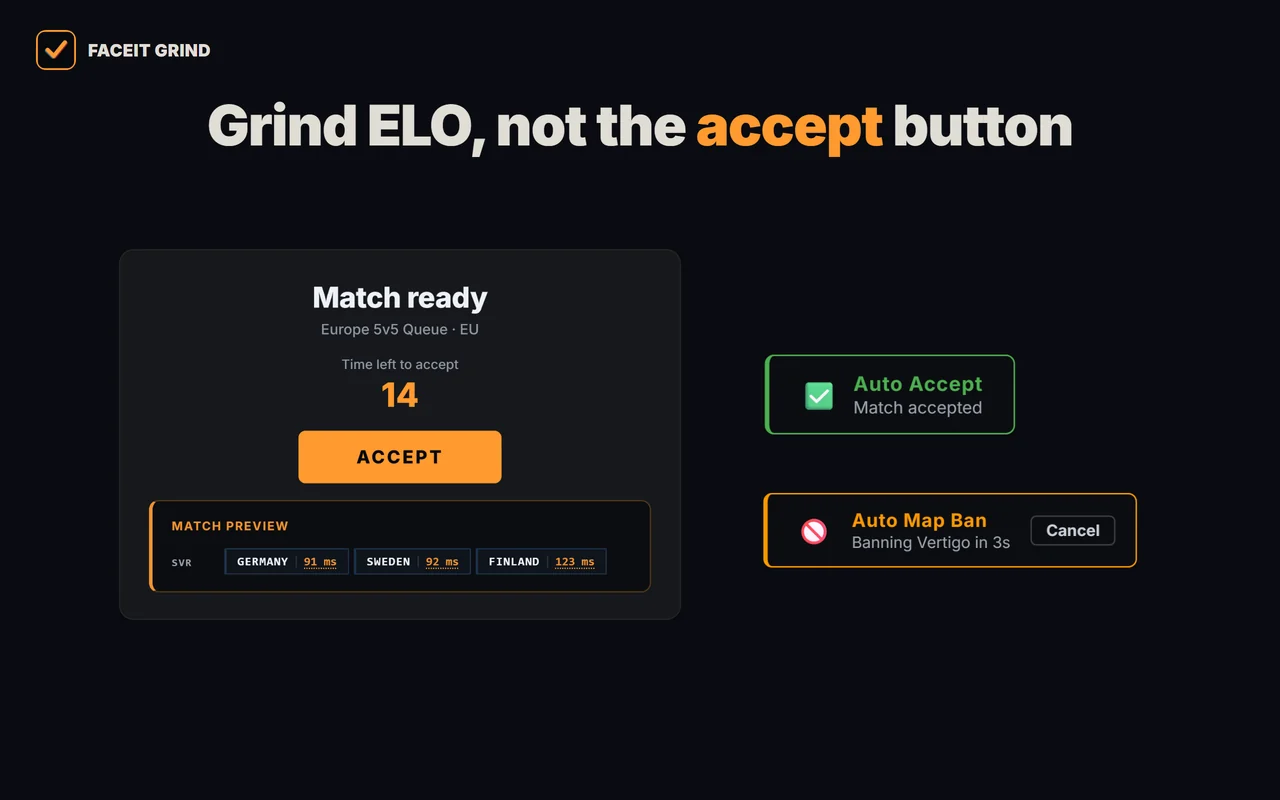
- Auto-accept match and invite — never miss a match while you are away: delay from 1 to 10 seconds, a countdown under ACCEPT and a Cancel button next to it.
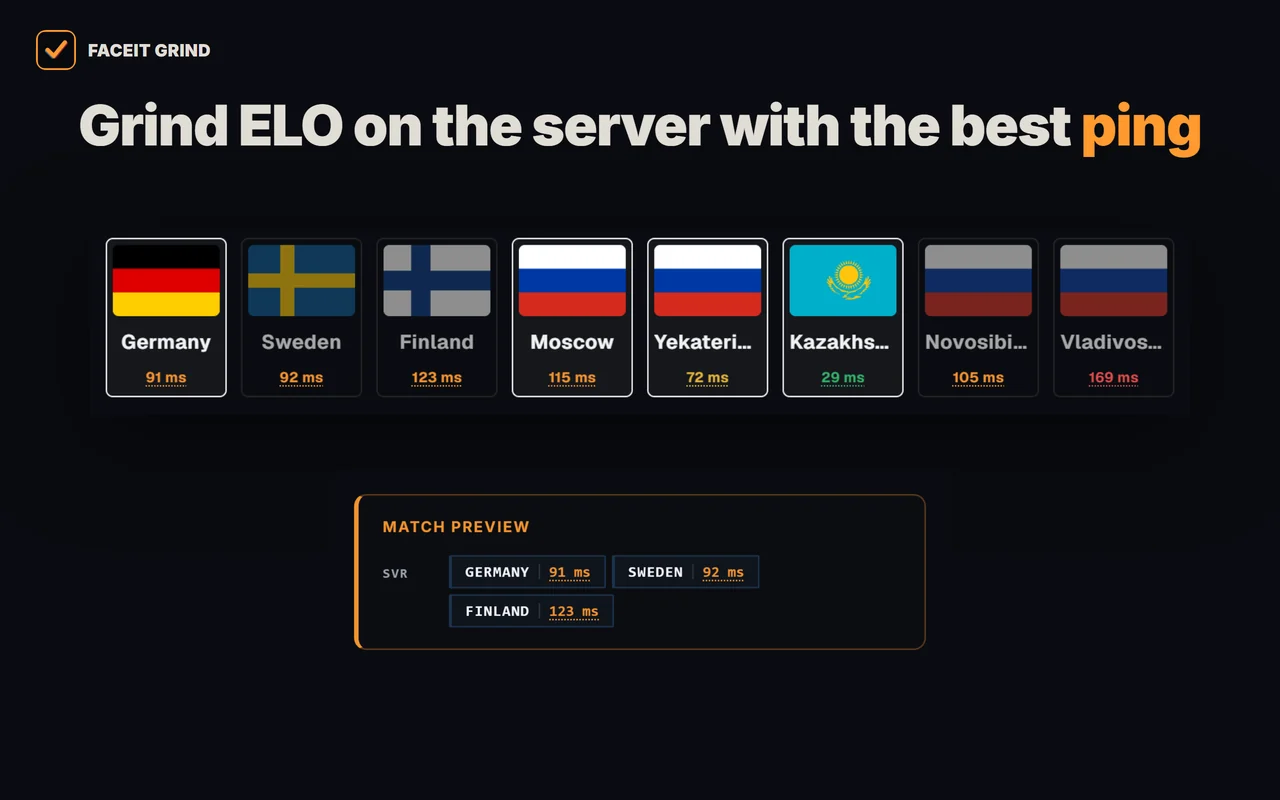
- Server and ping under ACCEPT — one panel under the ACCEPT button: the match servers, ping to them and the auto-accept countdown. Server ping is also on the server-picker page.
- Auto map ban — when you are captain, your least favourite map is banned for you — with a countdown and a cancel button.
- Auto position — your spot goes to team chat right after the veto, once per match; you set a spot for every map.
- Auto-copy connect — the moment the server is ready, the connect line is on your clipboard — paste it into the CS2 console.
- Match history — average ELO of both teams with one click on a row, 10/20/30-match markers and a scoreboard on hover.
- ELO in the right sidebar — your level, ELO and how far the next level is — in ELO and roughly in wins; hover for the progress bar, last match and streak.
- Your own card — ELO and progress to the next level in the corner of the page; click for the Session tab (matches and ±ELO this session) and the Form tab (recent matches and best map).
- Map & time — your best map, day and time to play — right in your ELO widget.
- Demo downloaded mark — download a demo in the match room and a mark with the time stays next to the FACEIT button, even after a reload.
- FACEIT Wallpapers — 7 ready-made backgrounds or your own image, with dim, blur and panel strength — the wallpaper shows in the match room too.
- FACEIT color — 9 colour options for frames, buttons, tabs and progress bars. Works without wallpapers too.
- Aura — a soft glow on buttons and frames in the colour you picked.
- Find FACEIT by Steam — a player's FACEIT profile right from their Steam page — even if the profile is private.



Is Opera GX different?
Chrome Web Store installation follows the same steps: open the extension listing, click the add button and confirm permissions. Opera GX’s gaming settings do not add FACEIT stats on their own; the installed extension does that.
Extension will not install or show stats?
- No install button. Make sure you opened the listing in desktop Opera or Opera GX, update the browser and reopen the store page. Follow Opera’s current prompts rather than old instructions requiring a helper.
- GRIND is installed but there is no data. Open the extension manager with Ctrl+Shift+E, check that GRIND is enabled and allowed to access FACEIT, then refresh the matchroom.
- Duplicate cards or buttons. If you have several FACEIT extensions installed, temporarily disable the others and reopen the room to check whether running them together causes the problem.
Related guides
FAQ
How do I install a Chrome Web Store extension in Opera?
Open the official listing in desktop Opera, click the add button and follow the browser prompts. Opera’s current help describes this flow without requiring “Install Chrome Extensions” first.
Does GRIND work in Opera GX?
You can install GRIND from the Chrome Web Store in desktop Opera GX. Refresh the FACEIT matchroom after installation: stats appear on the FACEIT page, not over CS2.
Can I install GRIND in Opera on my phone?
This guide covers desktop Opera and Opera GX. It does not promise mobile GRIND installation.
Is it safe to install a FACEIT extension?
Use the official store listing and check the publisher and requested permissions. Being listed in a store does not by itself guarantee that every extension is safe.
How does Opera installation differ from Yandex Browser?
Both browsers support Chrome Web Store extensions, but buttons and confirmation prompts can differ. Yandex Browser has its own step-by-step guide.
Why are stats missing after installation?
Check that the extension is enabled, can access FACEIT and that you refreshed the matchroom. Temporarily disable other FACEIT extensions to check compatibility.
