

Most "ultimate CS2 optimization" videos promise a 50% FPS boost from one magic tweak. The honest version: a full, correct optimization pass is worth roughly 10–30% average FPS plus a much bigger improvement in 1% lows — and the frametime consistency is what you actually feel. This is the staged plan, highest-impact first, with a deep-dive guide linked for every step.
GRIND · THE MOST CUSTOMIZABLE EXTENSION FOR FACEIT IN CS2
ENTER YOUR FACEIT NICKNAME.
DISCOVER YOUR ROLE.
Enter a nickname — see your role, five skill rings and form over 30 matches.
Example result: donk666



ROLES AND SKILL RINGS IN THE FACEIT MATCH ROOM
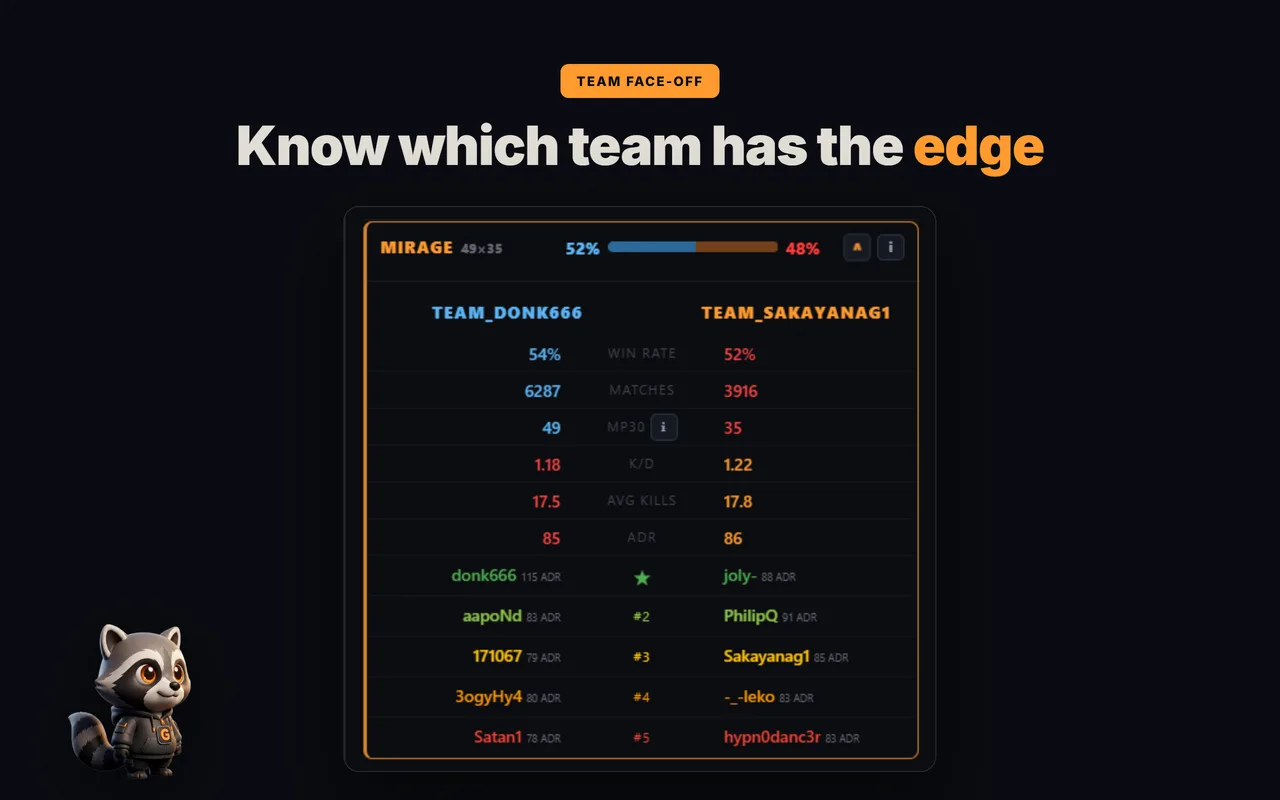
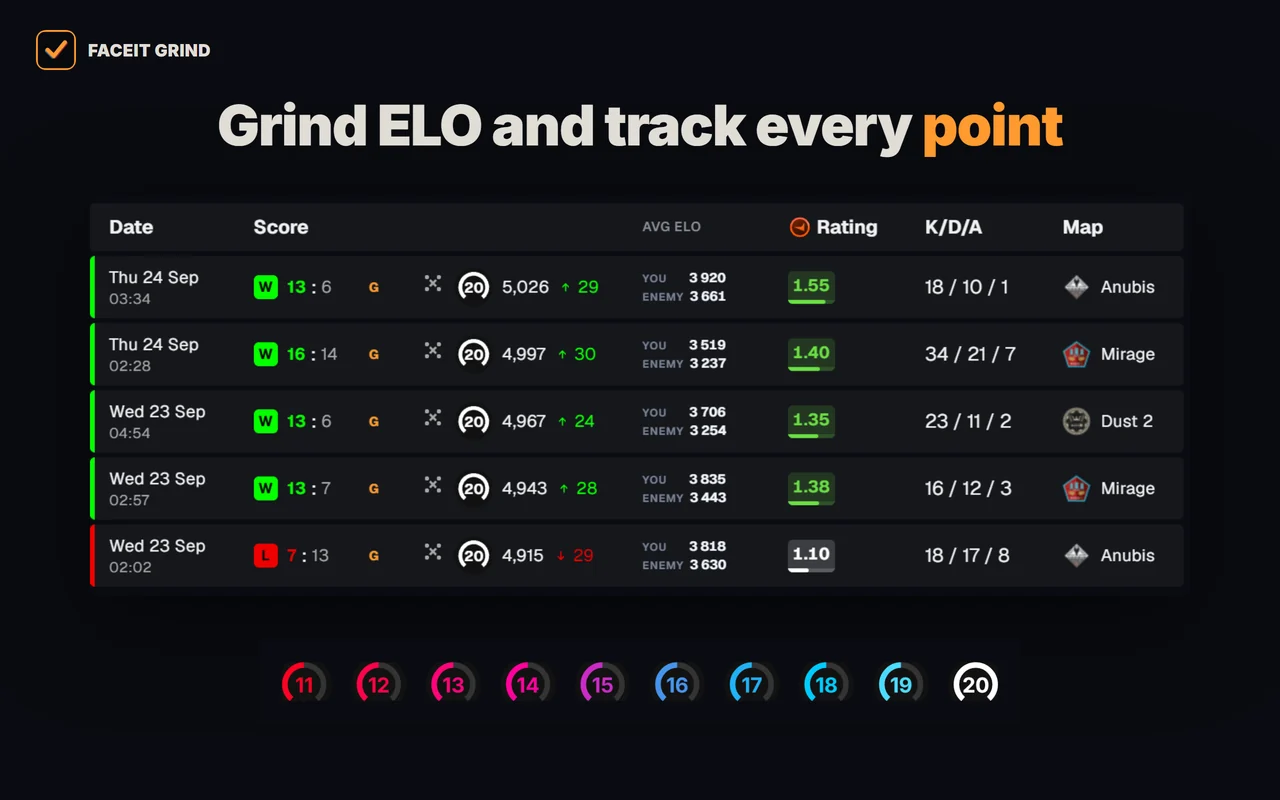
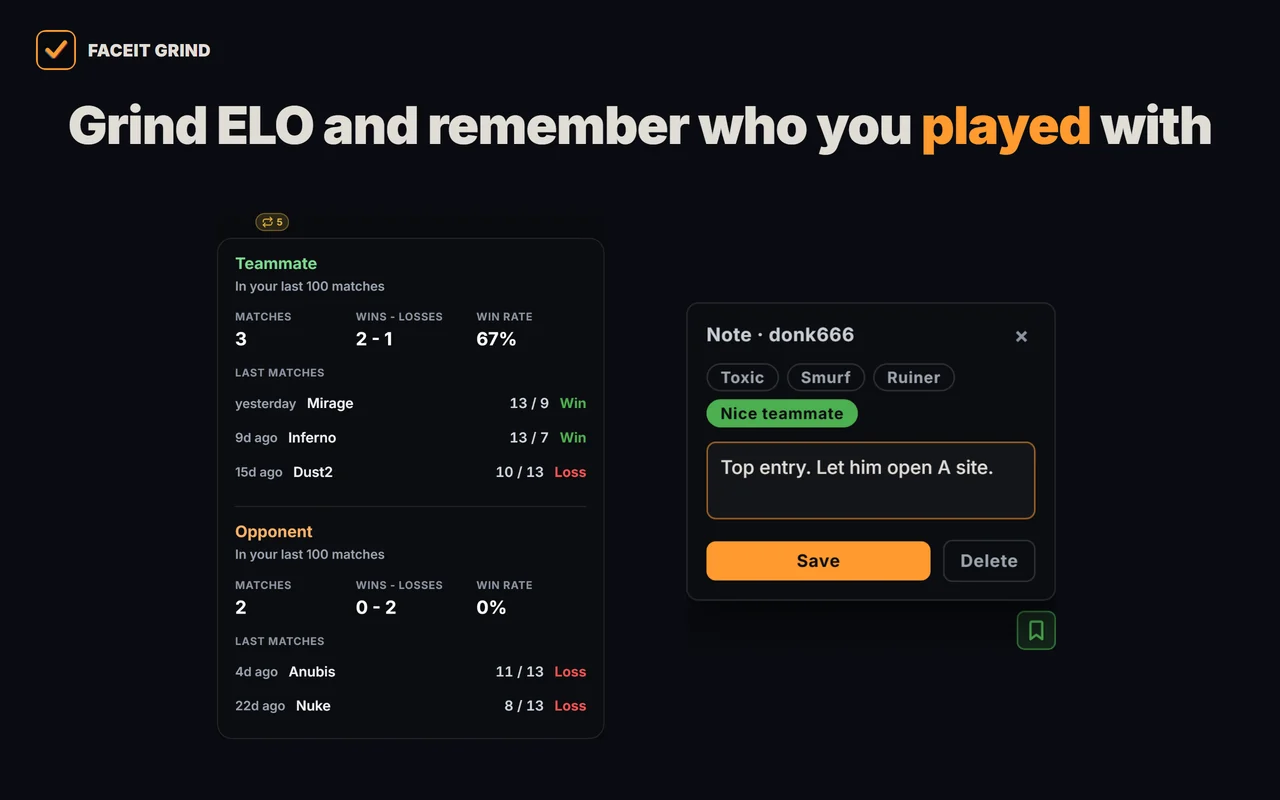
Want to see other players' roles right in the match room?
Optimize in stages, highest impact first
Don't tweak randomly. Work top-down: the system-level baseline first (it helps every profile and every rig), then your in-game settings, then launch options and caps, then hardware-specific branches. Skipping ahead to obscure registry hacks before you've fixed your power plan is how people waste an afternoon for 2 FPS.
Stage 1 — the always-apply baseline
- Disable fullscreen optimizations for cs2.exe and set a High performance GPU preference — Windows for CS2.
- Turn HAGS off, set the power plan to High performance, keep Game Mode on, remove Xbox Game Bar.
- Create a per-game cs2.exe NVIDIA App profile: Prefer Maximum Performance, Shader Cache Unlimited, FXAA/AO off — NVIDIA settings.
- In BIOS: XMP/EXPO + ReBAR, and microcode 0x12F on 13th/14th gen — BIOS settings.
Stage 2 — in-game video & audio
Set the video options that actually move frames — Multicore on, shadows and MSAA low, the right resolution — covered in how to get more FPS and 4:3 stretched vs 16:9. Then dial your audio so footsteps are loud and directional — CS2 audio settings. Borrow a proven video baseline from CS2 Pro Configs.
Stage 3 — launch options, FPS cap & latency
Use only the launch options that still work, set your fps_max for your refresh rate, and pick your Reflex-vs--noreflex latency path. If you run Discord, stop it eating your FPS.
Stage 4 — match it to your hardware
The exact values scale with your PC — a GTX 1650 and an RTX 4090 want different settings. See settings by PC tier, and if you ever stutter, work through the stuttering fixes.
The honest expectation
A full pass typically gives 10–30% higher average FPS and a larger improvement in 1% lows — the frametime stability you feel as "smoothness." It is not a 50% miracle, and copying a pro's config on weaker hardware can even cost you frames. Chase flat frametimes and a stable cap above your refresh, not the biggest possible number.
The full CS2 optimization guide index
- How to get more FPS in CS2 — the settings that move frames.
- Optimize Windows 11 for CS2 — power plan, HAGS, Game Mode.
- Best Nvidia settings for CS2 — the new NVIDIA App profile.
- CS2 BIOS settings for Intel — XMP, ReBAR, microcode.
- CS2 launch options — what still works, what is dead.
- What fps_max to set — the cap matrix by refresh rate.
- CS2 input lag: Reflex on or off — the latency setup.
- Fix CS2 stuttering — frametime spikes and their causes.
- CS2 audio settings to hear footsteps.
- Discord settings for gaming — stop it eating FPS.
- Best CS2 settings by PC tier — low, mid, high-end.
- 4:3 stretched vs 16:9 — resolution and aspect ratio.
Bottom line
Optimize in stages: system baseline, in-game, launch/caps/latency, then hardware. Expect a real 10–30% and much better 1% lows, not a miracle. Let the Optimizer do all four stages for your rig, copy a baseline from the pros, and once the game runs clean, win the lobby with FACEIT Grind.






FAQ
How much FPS can CS2 optimization actually give?
A full, correct pass is realistically worth about 10–30% higher average FPS plus a larger improvement in 1% lows. The frametime consistency is what you feel most — the "50% boost" thumbnails are not real.
What is the best order to optimize CS2?
Top-down: system baseline first (power plan, HAGS, NVIDIA profile, BIOS XMP/ReBAR), then in-game video and audio, then launch options, FPS cap and latency, then hardware-specific tweaks. Fix the high-impact basics before any obscure registry hacks.
What is the single best CS2 setting to change?
At the system level, the power plan and HAGS off; in-game, Multicore Rendering on with shadows and MSAA low. But the truly best values depend on your hardware, which is what the Optimizer computes for you.
Do I need to change BIOS settings for CS2?
For the biggest 1%-low gains, yes — enable XMP/EXPO and ReBAR, and on 13th/14th gen Intel update to microcode 0x12F. CS2 is CPU-bound, so memory and the BIOS matter more than most GPU tweaks.
Is copying a pro config enough to optimize CS2?
It is a good baseline for sens, crosshair and video, but not a full optimization. Pros run settings their 500+ FPS PCs can afford; on weaker hardware you need values scaled to your rig, plus the Windows, driver and BIOS layers a config file doesn't touch.
