

Open any "best CS2 launch options" video and you'll get a wall of 15–20 commands. The problem: Source 2 quietly ignores most of them. CS2 now auto-manages threading, the render API, tickrate (subtick) and intro skipping, so the old CS:GO strings people keep copying do nothing — they just sit there looking productive. This is the short, honest list of what actually does something in 2026.
GRIND · THE MOST CUSTOMIZABLE EXTENSION FOR FACEIT IN CS2
ENTER YOUR FACEIT NICKNAME.
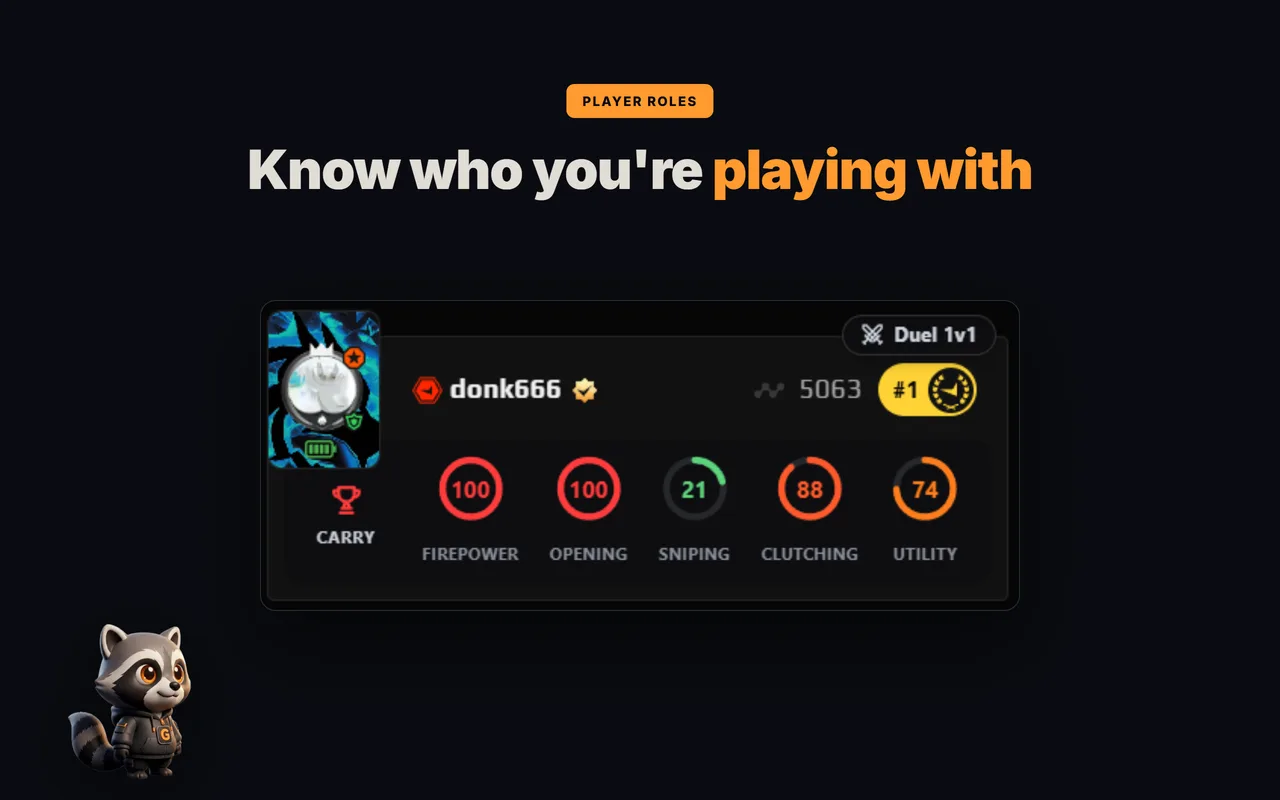
DISCOVER YOUR ROLE.
Enter a nickname — see your role, five skill rings and form over 30 matches.
Example result: donk666



ROLES AND SKILL RINGS IN THE FACEIT MATCH ROOM
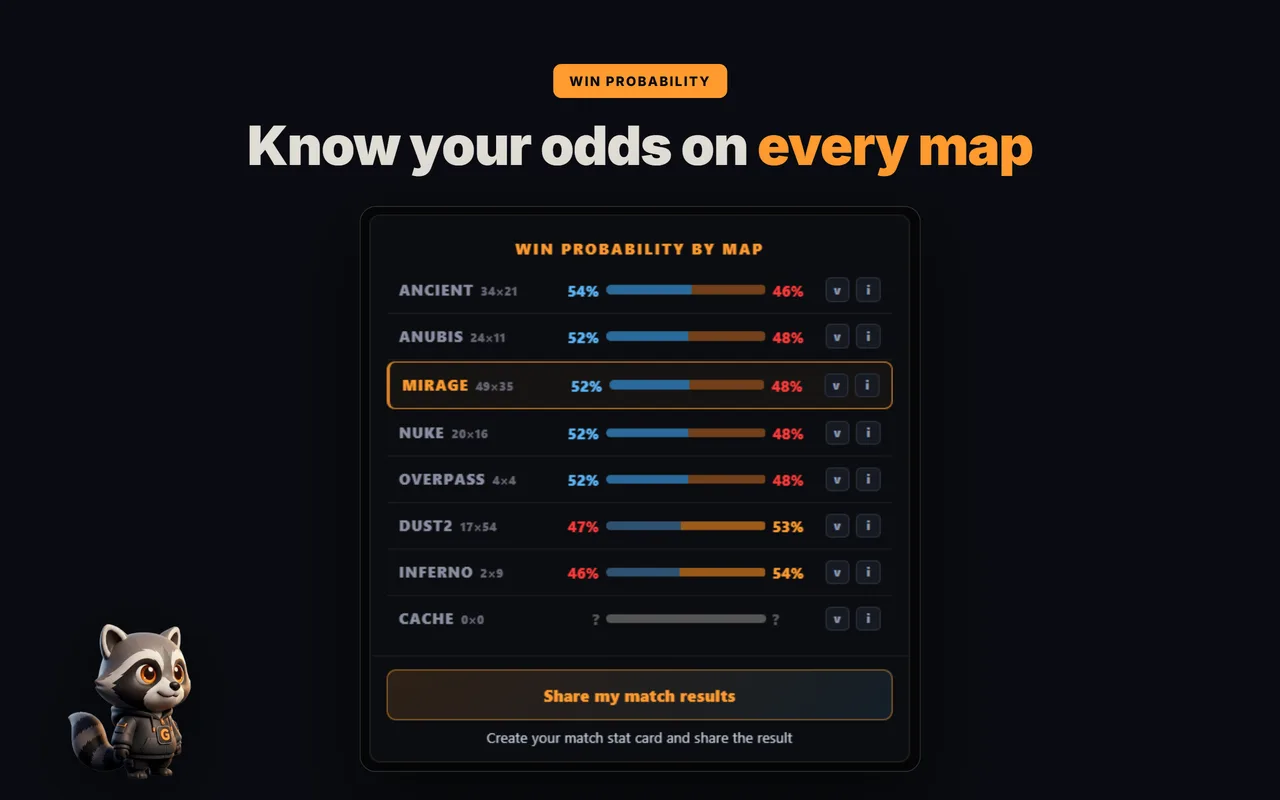
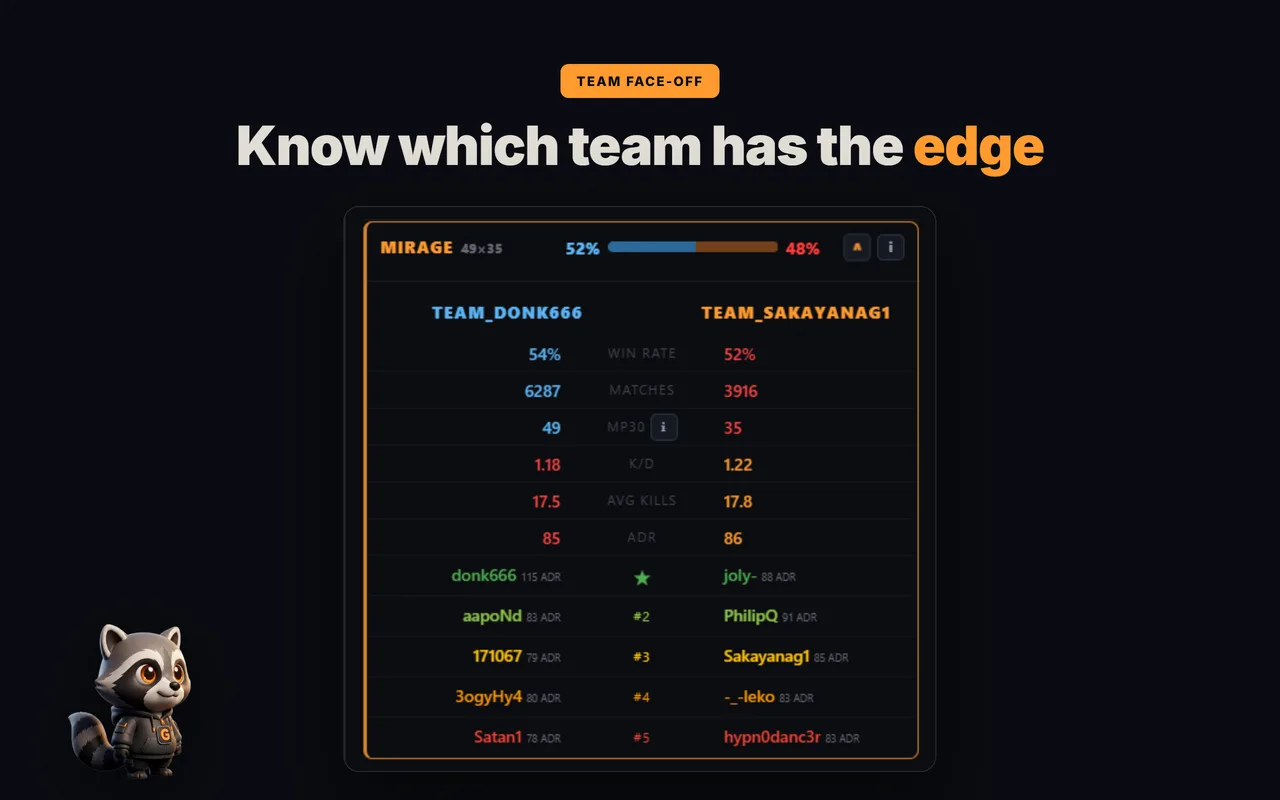
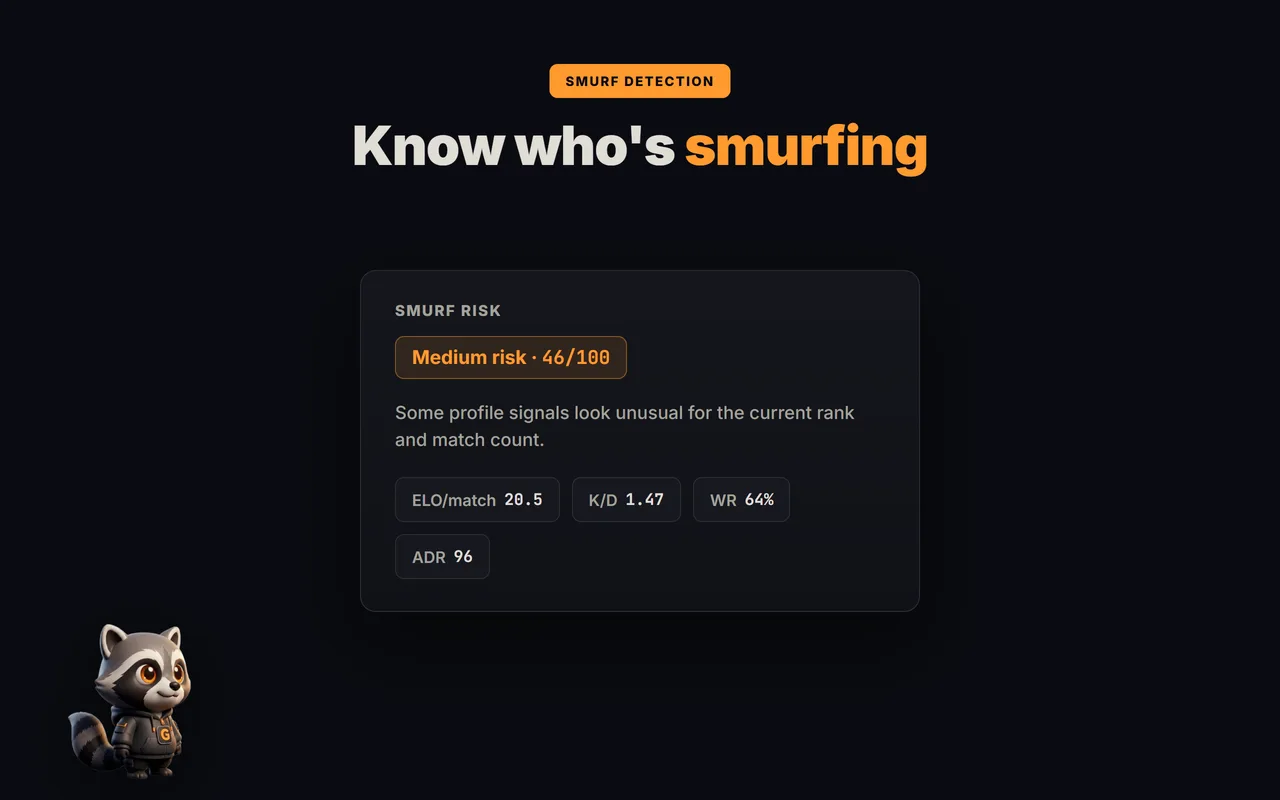
Want to see other players' roles right in the match room?
The only launch options that still do anything
Right-click CS2 in Steam → Properties → General → Launch Options, and paste this:
-novid -console -allow_third_party_software -nojoy +fps_max 0- -novid — skips the Valve intro. Zero downside.
- -console — opens the developer console at boot so you can run commands and check
net_graph/cl_showfps. - -allow_third_party_software — required for OBS Game Capture, the NVIDIA App overlay and similar tools to hook CS2.
- -nojoy — disables joystick polling; trims a little overhead and fixes rare crashes on some configs.
- +fps_max 0 — sets your FPS cap.
0uncaps; on a fixed-refresh monitor you usually want a real number instead.
Launch options that are dead in Source 2
These were real in CS:GO. In CS2 they are no-ops — delete them. Keeping them won't break anything, but they give a false sense of "optimized."
-tickrate 128— CS2 is subtick; tickrate is no longer a thing.-threads N— Source 2 manages threading itself.+mat_queue_mode 2— ignored; multicore rendering is automatic.-d3d9ex,-nod3d9ex— DirectX 9 era, gone.-nopreload,-nohltv,-no-browser,-softparticlesdefaultoff,-limitvsconst,-forcenovsync,-r_emulate_g— all inert.
Situational ones (only if you need them)
- -noreflex — forces NVIDIA Reflex off. Some players on RTX cards report smoother frametimes with Reflex off + Ultra Low Latency Mode in the driver instead. It's genuinely contested — test both. See CS2 input lag: Reflex on or off.
- -high — forces high CPU priority. A coin flip: it can help on dedicated audio but cause micro-stutter on integrated audio. Leave it off by default.
- -language english — forces English UI if Steam keeps switching it.
- -w 1280 -h 960 — only if a custom resolution won't appear in CS2's video menu.
Bottom line
Launch options are mostly a solved, boring problem in CS2: five flags do everything, and the rest is recycled CS:GO folklore. The real gains live in your in-game, Windows and driver settings — let the Optimizer tune those for your rig, and set your fps_max for your monitor properly.
FAQ
What are the best launch options for CS2 in 2026?
-novid -console -allow_third_party_software -nojoy +fps_max 0 covers everything that still works. Set the fps_max value to match your monitor instead of leaving it at 0.
Does -tickrate 128 work in CS2?
No. CS2 uses subtick, so tickrate launch options do nothing. It is a leftover CS:GO command you can delete.
Do launch options increase FPS in CS2?
Barely. A clean set removes overhead and helps stability, but the real FPS gains come from in-game video settings, drivers and the Windows power plan, not console flags.
Should I use -high in CS2?
Only as a test. It forces high CPU priority and can smooth frames on some rigs, but causes micro-stutter on systems with integrated audio. Default to leaving it off.
What does -allow_third_party_software do?
It lets external tools like OBS Game Capture and the NVIDIA App overlay hook into CS2. Add it if you stream or record; otherwise it is optional.
